
What is the Best Way to Connect VAPI to a Gemini RAG Pipeline?
A Step-by-Step Guide for Gemini File Search and Make.com Integration
Connecting your VAPI voice agent to a dynamic knowledge base ensures your AI provides accurate, context-aware answers. This guide walks you through using Gemini’s File Search Tool and Make.com to build a Retrieval-Augmented Generation (RAG) system that minimises hallucinations and maximises helpfulness.
In this Article
- How Do You Reduce RAG Latency and Cost in VAPI?
- How Does Gemini File Search Enable RAG for Voice AI?
- What Are the Requirements for Gemini and Make.com Integration?
- Where Do I Get a Google Gemini API Key for My Agent?
- How Do You Build the Make.com Workflow for VAPI Retrieval?
- How to Upload Knowledge Base Files to the Gemini API?
- How Do You Create a File Search Store Using HTTP Requests?
- How Do You Link Uploaded Files to a Gemini Search Store?
- Why Are Metadata and Chunking Critical for Voice AI Accuracy?
- How Do You Build the Gemini File Search Scenario in Make.com for VAPI?
- How Can You Apply These Solutions?
How Do You Reduce RAG Latency and Cost in VAPI?
The reason traditional RAG creates a bottleneck for voice agents is simple: it requires too many moving parts. Managing separate vector databases and embedding models adds latency that can make a voice call feel unnatural. By using the Gemini File Search Tool, you move to a "Managed RAG" model. This setup keeps the retrieval process within the Google infrastructure, which helps reduce response delays. It also cuts token costs by up to 70% because the model only retrieves specific sections of your data instead of processing an entire document for every query.
How Does Gemini File Search Enable RAG for Voice AI?
The Gemini API uses Retrieval Augmented Generation (RAG) to provide context to the model. This allows the model to provide more accurate answers based on your specific files. Understanding these three parts is key:
File Search
The core ability of Gemini to look through data to find relevant information based on a prompt.
File Search Tool
The tool that imports, chunks, and indexes your data for fast retrieval.
File Search Store
The container where your files are organized. You must create a store before you can search your files.
What Are the Requirements for Gemini and Make.com Integration?
You need a combination of API access and automation tools to bridge the gap between your voice agent and your data. Ensure you have the following ready:
- Google Gemini API Key: Required for all HTTP requests to Google's generative language services.
- Make.com Account: Used to orchestrate the flow between GitLab, Google Drive, and Gemini.
- VAPI Account: Your voice agent platform where the "Tool Call" will be configured.
- n8n Account: (Optional) An alternative to Make.com for those who prefer self-hosted automation.
Where Do I Get a Google Gemini API Key for My Agent?
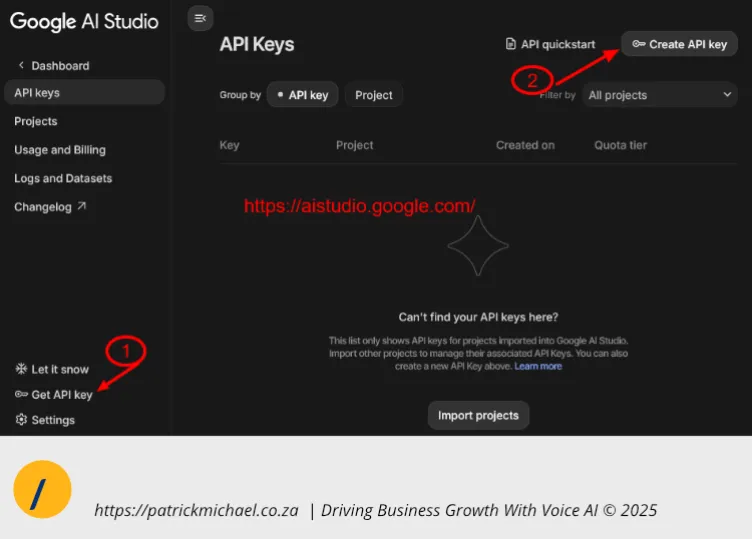
You can generate your key through the Google AI Studio. The process is simple:
- Go to the Google AI Studio page.
- Click Get API Key in the bottom-left sidebar.
- Select Create API Key at the top-right of the screen.
- Copy the key and save it in a secure location for use in your Make.com scenario.
How Do You Build the Make.com Workflow for VAPI Retrieval?
Building a robust RAG workflow requires a two-phase setup: one-off administrative tasks and a live operational scenario. The administrative phase involves:
- uploading your knowledge base (once-off);
- creating the search store (once-off), and;
- associating the knowledge base with the store (once-off).
The operational phase handles the live "Tool Call" from VAPI, retrieves the answer, and formats the JSON response.
🢛 Jump to the set-up in make.com section.
How to Upload Knowledge Base Files to the Gemini API?
Uploading your file uploads from a repository on GitLab/GitHub ensures your voice agent always uses the most current data. While you can upload files manually, we would look to build a scenario that automates the maintenance process.
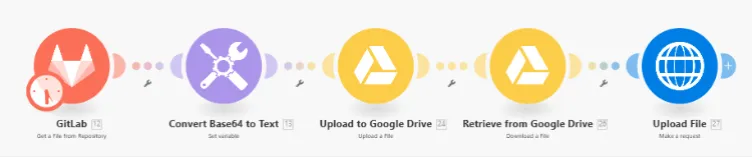
Scenario to Upload via GitLab (one-off)
- Create GitLab Connection: Use a Personal Access Token (PAT) with API access.
- Decode Content: Convert the GitLab file return from Base64 to a Markdown String.
- Store Temporarily: Upload and retrieve from Google Drive.
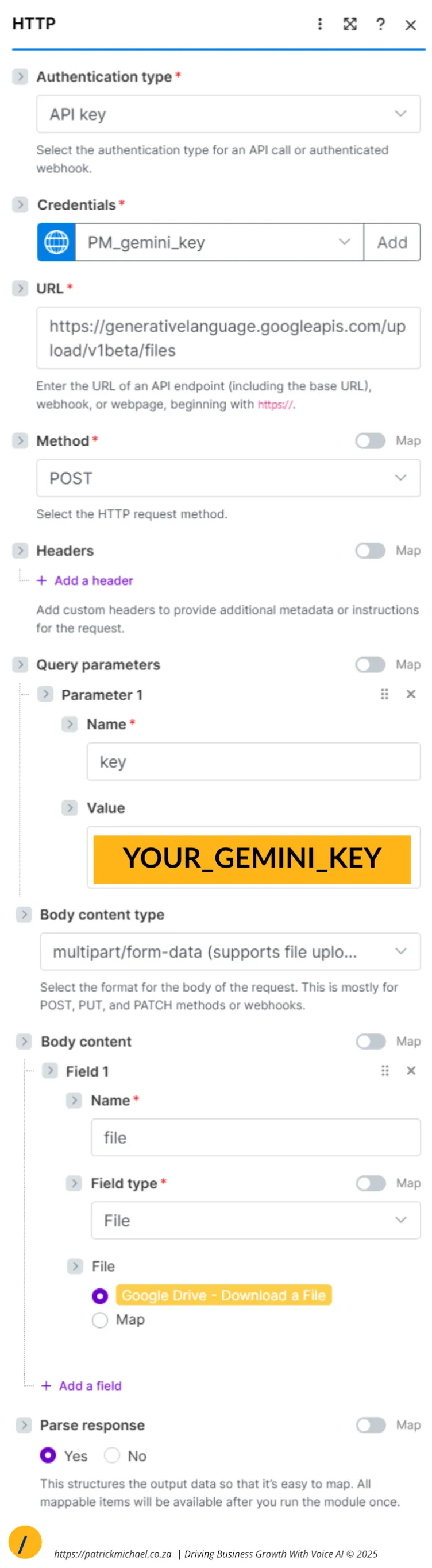
- Execute HTTP POST: Send the file to Gemini using the following configuration:
- Authentication type:API Key
- URL:
https://generativelanguage.googleapis.com/upload/v1beta/files - Method: POST
- Query Parameter:
key= Your Gemini API Key - Body Content Type:
multipart/form-data - Body content:
- Name: file
- Field type: File
- File: Map to the download file from Google Drive.
Typical Response:
[
    {
        "data": {
            "file": {
                "name": "files/SOME_ID",
                "mimeType": "text/markdown",
                "sizeBytes": "6180",
                "createTime": "2025-12-04T10:03:15.321360Z",
                "updateTime": "2025-12-04T10:03:15.321360Z",
                "expirationTime": "2025-12-06T10:03:14.459300427Z",
                "sha256Hash": "THE_HASH",
                "uri": "https://generativelanguage.googleapis.com/v1beta/files/SOME_ID",
                "state": "ACTIVE",
                "source": "UPLOADED"
            }
        },
        "headers": {
          .......
        },
        "statusCode": 200
    }
]
How-To Image Sequence for Upload File to Gemini
The sequence below gives a visual guide to the Scenario to Upload Via GitLab.
Flow Diagram
The Base64 conversion:
{{toString(toBinary(12.content; "base64"))}}
The HTTP POST Configuration
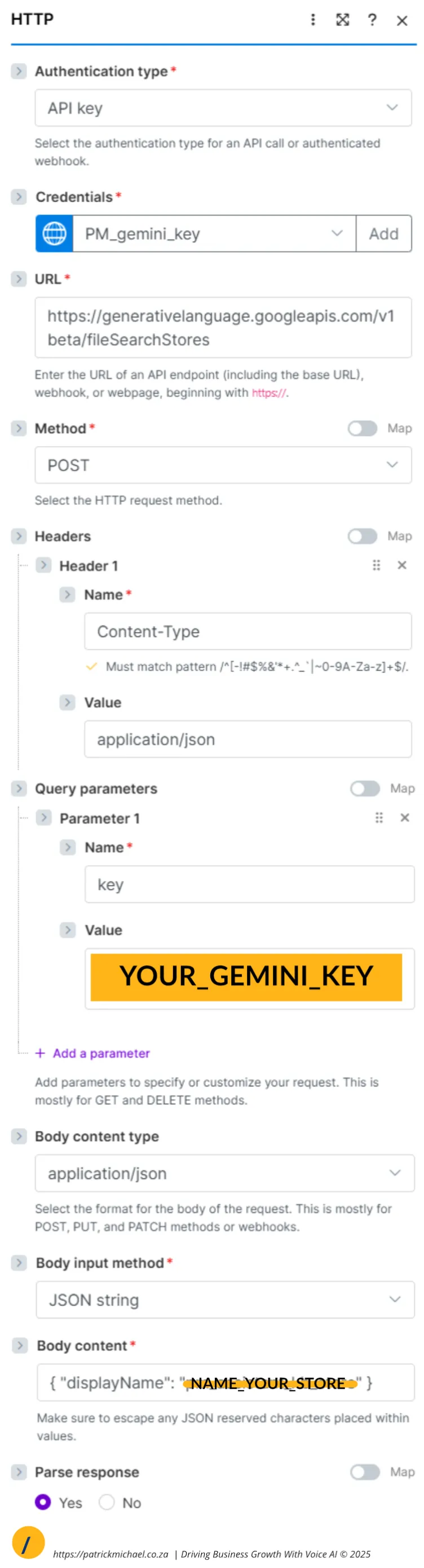
How Do You Create a File Search Store Using HTTP Requests?
Once your file is uploaded, you need a store to hold it. Use the HTTP Request module with these settings (once-off):
- Authentication type:API Key
- URL: https://generativelanguage.googleapis.com/v1beta/fileSearchStores
- Method: POST
- Header: Content-Type = application/json
- Query Parameter:
key= Your Gemini API Key - Body content type: application/json
- Body input method: JSON string
- Body Content: { "displayName": "name_your_store" }
Typical response:
[
   {
       "data": {
           "name": "fileSearchStores/STORE_NAME-STORE_ID",
           "displayName": "YOUR_DISPLAY_NAME_ENTERED",
           "createTime": "2025-12-04T10:10:53.022151Z",
           "updateTime": "2025-12-04T10:10:53.022151Z"
       },
       "headers": {
           ....
       },
       "statusCode": 200
   }
]
How Do You Link Uploaded Files to a Gemini Search Store?
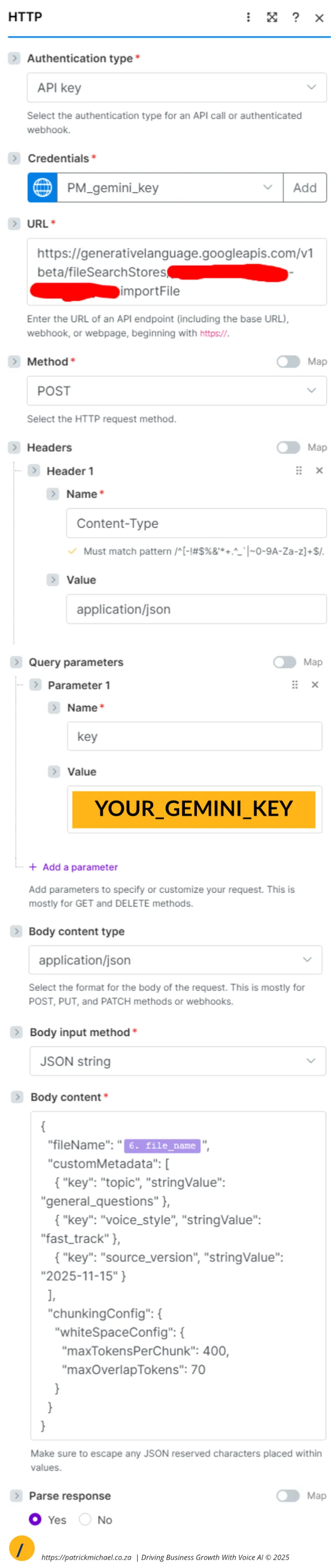
The final setup step is linking your file to the store. Send a POST request using the HTTP module:
- Authentication type:API Key
- URL: https://generativelanguage.googleapis.com/v1beta/fileSearchStores/YOUR-…
- Method: POST
- Header: Content-Type = application/json
- Query Parameter:
key= Your Gemini API Key - Body content type: application/json
- Body input method: JSON string
Body Content:
{
  "fileName": "{{FILE-FROM-UPLOAD-FILE}}",
  "customMetadata": [
    { "key": "topic", "stringValue": "general_questions" },
    { "key": "voice_style", "stringValue": "fast_track" },
    { "key": "source_version", "stringValue": "2025-11-15" }
  ],
  "chunkingConfig": {
    "whiteSpaceConfig": {
      "maxTokensPerChunk": 400,
      "maxOverlapTokens": 70
    }
  }
}
Typical response:
[
   {
       "data": {
           "name": "fileSearchStores/STORE-ID/operations/ID-ID",
           "response": {
               "@type": "type.googleapis.com/google.ai.generativelanguage.v1main.ImportFileResponse"
           }
       },
       "headers": {
           ....
       },
       "statusCode": 200
   }
]
Why Are Metadata and Chunking Critical for Voice AI Accuracy?
The reason is simple: it helps the AI find the needle in the haystack. Without these, the AI might retrieve too much or too little information.
What is customMetadata?
Metadata acts as a label. By tagging files with topics like "pricing" or "support," you help the AI prioritize the right documents for specific questions.
What is chunkingConfig?
Chunking breaks large files into small pieces. For voice agents, you want short chunks. We recommend a maxTokensPerChunk of 400. This ensures the answer is concise enough for a phone conversation.
How Do You Build the Gemini File Search Scenario in Make.com for VAPI?
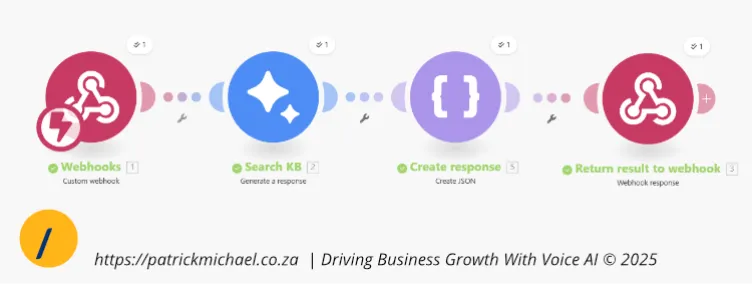
What Does the Full Gemini Retrieval Workflow Look Like?
How Do You Configure the Gemini Module for File Search?
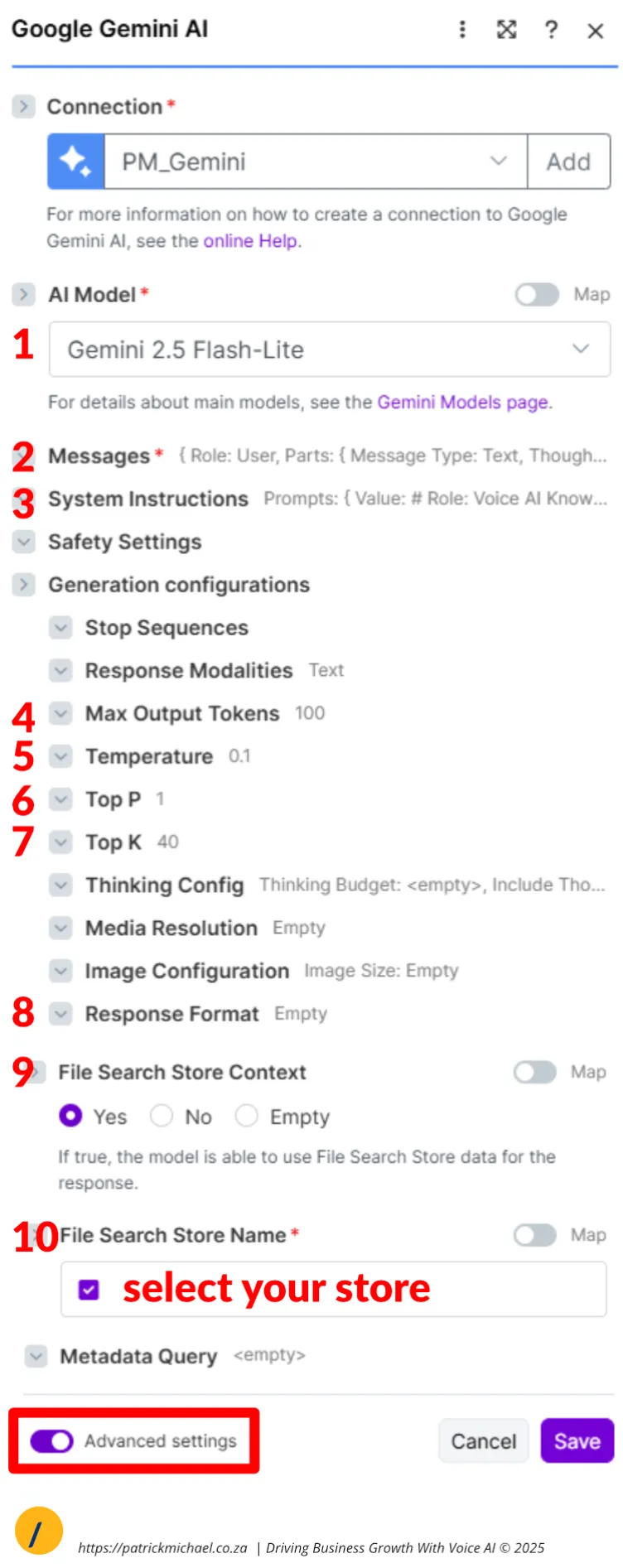
Use the Google Gemini Generate a response module. NOTE: Enable Advanced Settings
- AI Model: Gemini 2.5 Flash or Flash-Lite. Test the response for each, select the one best for your use case. I find the Flash-Lite to give a more concise response.
- Messages:
- Role: User
- Message Type: Text
- Text:
# User Question
{{1.message.toolCalls[].function.arguments.caller_question}}
- System Instructions:
- Prompt 1:
# Role: Voice AI Knowledge Synthesizer

You are a low-latency Voice AI Knowledge Synthesizer. Your function: interpret user queries, search the knowledge base using the provided File Search Store context, and return concise, natural-sounding responses optimized for voice delivery.

# Instructions

1. **Parse Intent:** Identify the core information requested.
2. **Search Knowledge Base:** Use the File Search Store context provided to find the exact answer.
3. **Synthesize for Voice:**
   - Extract only essential information
   - Rewrite as brief, conversational sentences
   - **No conversational filler** (no "According to...", "The answer is...", "Sure, I can help...")
   - Prioritize brevity and clarity
4. **Output in PLAIN TEXT:** Return ONLY the PLAIN TEXT response. No markdown, no code blocks, no explanations.

## Output Format
"<direct, concise answer>"
- Prompt 1:
- Max Output Tokens: 100. Keep this a low value, based on your use case. For a brief response, use lower values.
- Temperature: 0.2 or 0.2. Restrict creativity, we are looking for an accurate response.
- Top P: 0.9 or 1. Again for accuracy.
- Top K: 40.
- Response Format: Empty (NB)
- File Search Context: Yes
- Select your File Search Store name from the available list. If there is no list, your store has not been set up -> follow the instructions above to set up your store.
How Do You Format the JSON Response for VAPI Tool Calls?
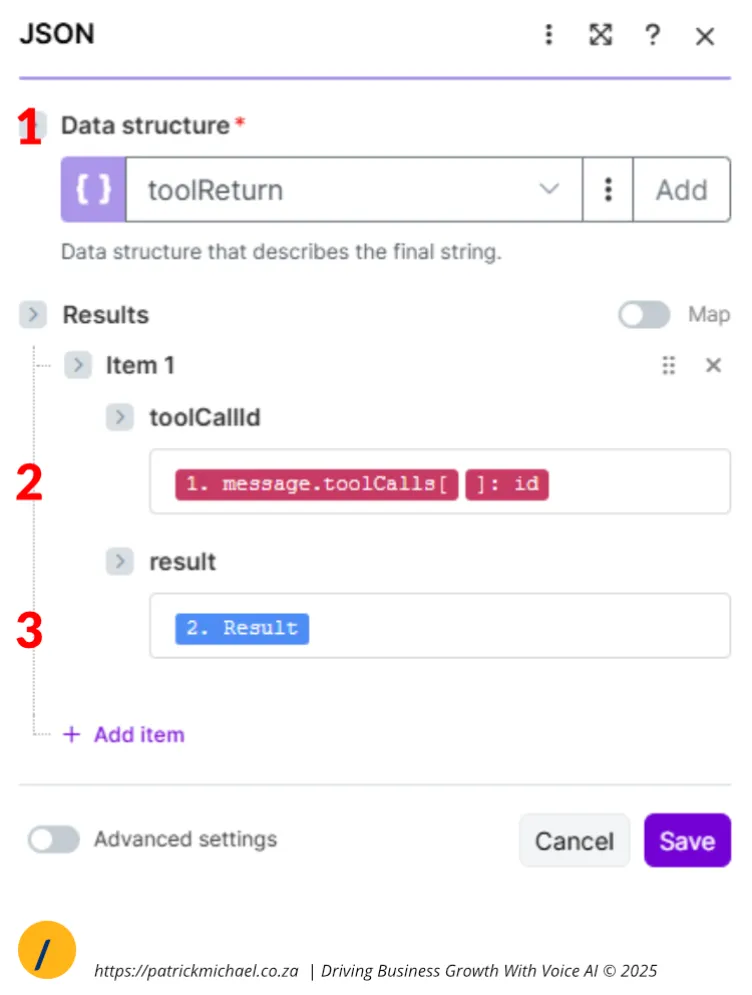
A VAPI tool call response expects a specific format:
```json
{
    "results": [
        {
            "result": "Yes, Patrick Michael uses Vapi as their core voice AI platform.",
            "toolCallId": "call_VAPI_CALL_ID"
        }
    ]
}
```
To facilitate this, I create a tool response data structure, and then use the Create JSON module to ensure a clean structure is passed to the Webhook Response module.
Get The Code
Want the full code in a well formatted .....
How Can You Apply These Solutions?
By following this structured approach, you turn a standard voice bot into an authoritative assistant. Use the File Search Store to organize your brand's Knowledge Nodes. This ensures that when a customer asks a question in South Africa or anywhere else, your VAPI agent responds with the exact information you've vetted. Start by setting up your API key and creating your first store today.
TL;DR
To give your VAPI agent a knowledge base, use Gemini's File Search Store. Upload files via HTTP in Make.com, create a store, and link the files using the importFile method. Use customMetadata for better organization and chunkingConfig to ensure the AI retrieves short, relevant answers perfect for voice conversations.
Engage With Patrick
I would love to hear more from you. Use one of the methods below.
Contact Me
I can help you with your:
- Voice AI Assistants;
- Voice AI Automation;
I am available for remote freelance work. Please contact me.
References
This article is made possible due to the following excellent resources:
Official Gemini Docs:
Recent Articles
The following articles are of interest:
Add new comment