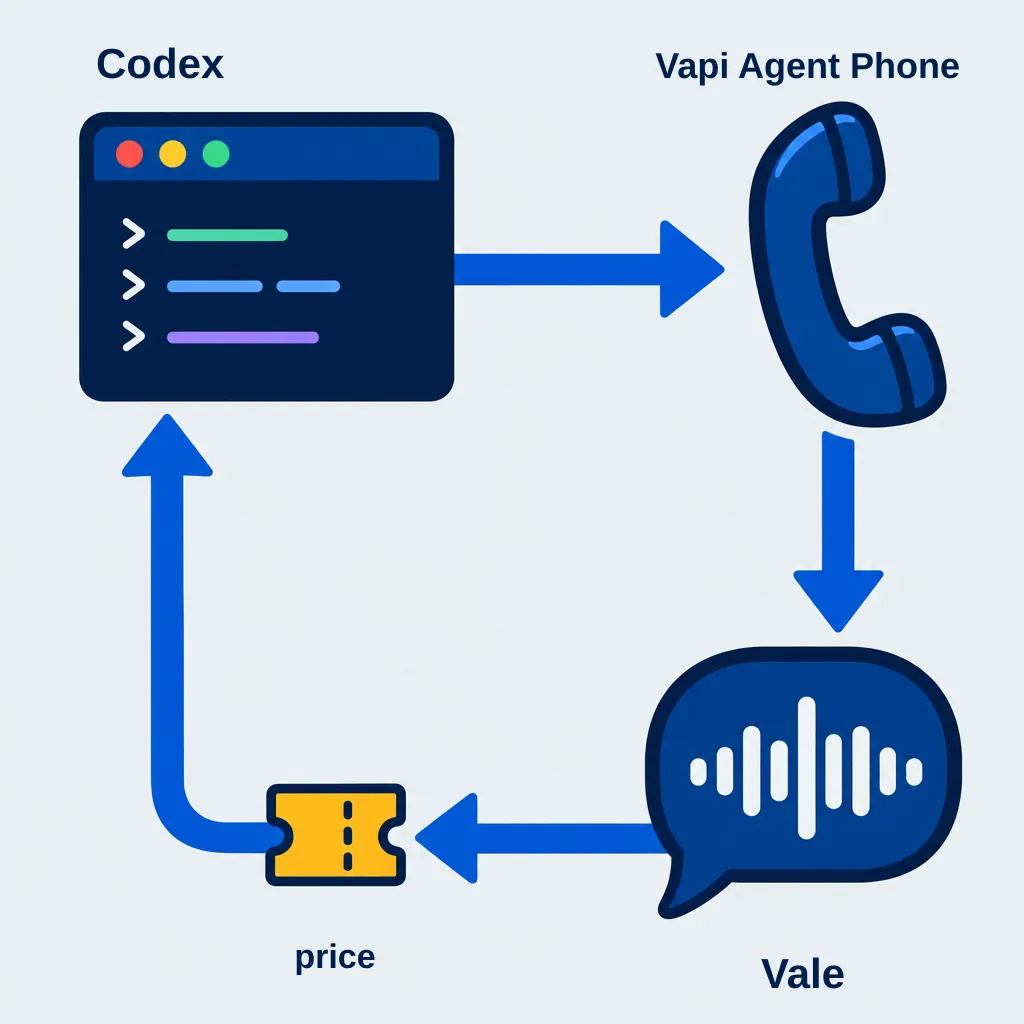
I had a static voice AI flow diagram in a completed presentation about adding voice AI to VoIP networks. I wanted to see what would happen if I gave it a Play button.
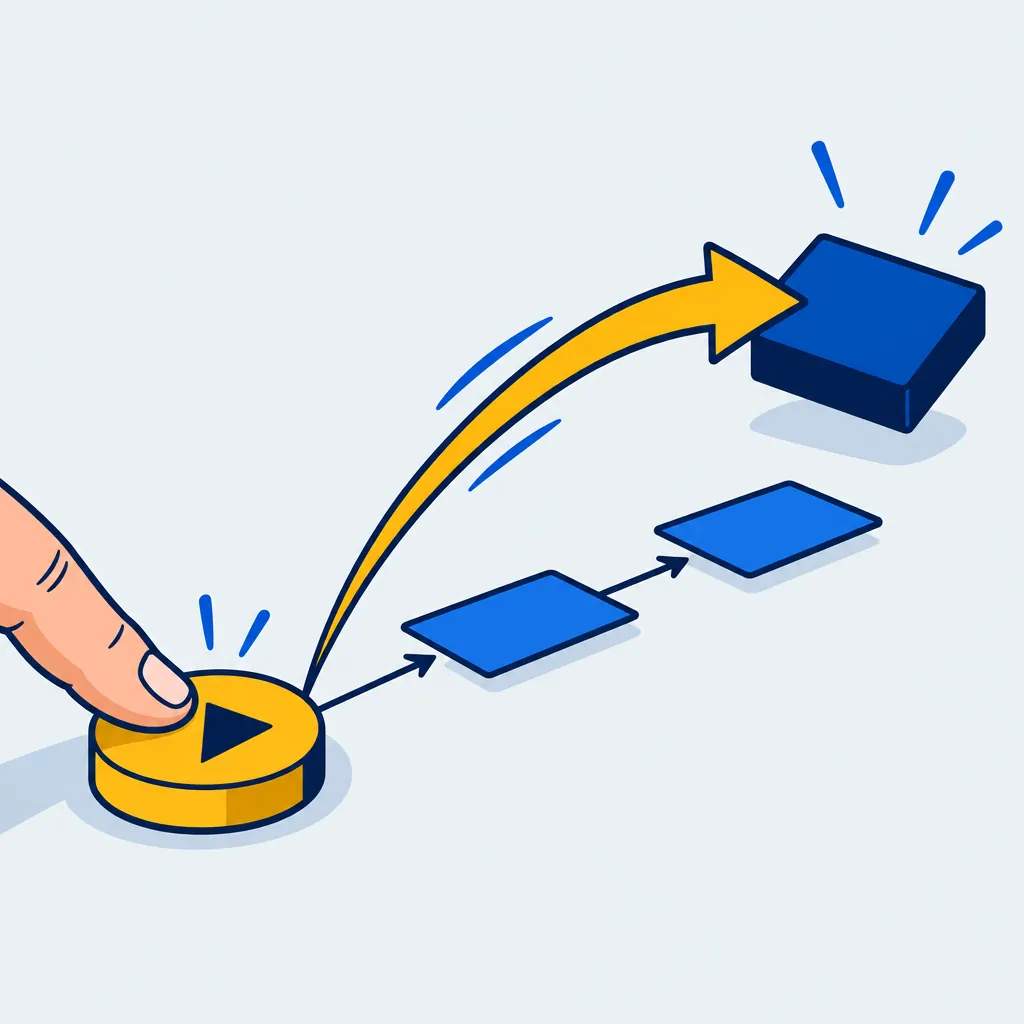
I opened Codex CLI and started with the diagram. A few iterations later, it had animated arrows, play controls and a little pop when the animation reached its destination.
Small thing. Quite satisfying to press Play and watch something you have been building come to life.
Play the flowchart animation
(consent)
Structured message
- SMS
- Slack
Structured output
- CRM
- Supabase
- Airtable
Choose Ask question, Leave message or Handoff to human to play the whole path.
Reduced motion is enabled. Playback advances automatically using simple highlights, without moving connector traces.
The example has three routes: Ask question, Leave message and Handoff to human.
An inbound caller can ask a question or leave a message. The question route includes knowledge retrieval and an answer. Details are captured with a consent label, followed by post-call processing and message or data outputs. Human handoff is a separate route during call handling.
This diagram illustrates a call flow. It does not demonstrate a live call or prove that the systems named in the diagram are connected.
How the arrows were animated
We used GSAP, a JavaScript animation library, with its DrawSVG plugin for the arrows.
DrawSVG reveals and hides SVG strokes. If your diagram is a flat image, the connections you want to animate need to be recreated or overlaid as SVG strokes first.
For a project with Node.js and npm installed, run this in the project terminal:
npm install gsapGSAP 3.13 and later include DrawSVG in the public npm package. Import and register the plugin in your JavaScript or TypeScript file:
import { gsap } from "gsap";
import { DrawSVGPlugin } from "gsap/DrawSVGPlugin";

gsap.registerPlugin(DrawSVGPlugin);
The official GSAP installation guide covers setup options. The DrawSVG documentation explains which SVG elements it can animate.
When system settings hide the effects
One issue caught us out during testing: the animation appeared to be missing its effects. The operating system's Reduce Motion setting was enabled, and the animation was following that preference. We added a choice between full effects, reduced motion and following the system setting. If an animation looks different from what you expect, check the device's accessibility settings before assuming the animation code is broken.
Start with one connection
Give your coding agent a small task. For example:
Add a Play button to this diagram. Animate one arrow, then make its destination pop when the arrow arrives. Respect the viewer's reduced-motion preference.
Get one arrow and one destination feeling right before adding more.